In this article
Key takeaways
- Start by confirming the platform: the page source or the Wappalyzer or BuiltWith extension shows the store is on Salla, and 91% of Salla stores' ads run in Saudi Arabia.
- The sitemap (sitemap.xml) on most stores lists product URLs and sometimes their dates, so you see what was added recently.
- Meta's Ad Library shows the store page's active ads, and the Meta Pixel Helper extension shows the Meta pixel on its pages.
- Sales, orders and profit are private and no tool sees them; what you see are the signals: ads that last for weeks, the number of active ads, new countries.
What spying on a Salla store means, and what you cannot see
Salla is a Saudi store builder, so its stores are mostly Saudi: 91% of its ads in our study run in Saudi Arabia. The competitor you want to understand most likely advertises on Facebook and Instagram and sells from a product page in its store.
What you can see through public, legal means:
- Products, prices and offers as any visitor sees them in the store.
- Active ads of its page, and when each one started.
- Tracking tools on its pages (the Meta pixel and others), which tell you where it advertises.
- New products from the sitemap, when it is available.
What you cannot see: sales, revenue, number of orders, conversion rate, profit. Those belong to the store owner, and any tool promising them is offering a guess. Know a Salla store's sales explains honestly what you can infer instead.
The free methods, step by step
- Confirm the store is on Salla. Open the store and look at the page source (view source in your browser), or install the Wappalyzer or BuiltWith extension: both show the store platform and the tools installed on it.
- Read the sitemap. Add /sitemap.xml after the store's domain. Most stores publish one, with product URLs and sometimes their update dates, so you see what was added this week. Some stores hide it or change its shape.
- Open Meta's Ad Library. Pick the country, type the store page's name (not its website) and pick the page from the list: you see its ads running now and the start date of each. The full guide is in Facebook Ad Library.
- Check the pixel. Open the store with the Meta Pixel Helper extension in Chrome: a Meta pixel means the store advertises on Facebook and Instagram, or is getting ready to. Pixels on Salla stores in detail: Salla, Zid and Shopify pixels.
- Note what the visitor sees. The price before and after discount, payment methods, delivery fees, and reviews if the store shows them.
These steps are enough to follow one or two competitors. The trouble starts when you do not know your competitors yet, or want to see dozens of them together.
Where the free methods stop
- No platform filter: Meta's library does not know an ad leads to a Salla store, so you cannot ask for "all Salla stores' ads in Saudi Arabia".
- Search by page, not by store: searching a URL finds only ads that mention it as text, and one store may advertise from several pages.
- Stopped ads disappear: a commercial ad leaves the library when it stops, so you never see what your competitor tested last month.
- The landing page changes: the price and offer the buyer saw on the day of the ad may be gone from the store tomorrow.
For the limits of the library's ad counter in detail, read Active ads count.
Spying on Salla stores in GccFY
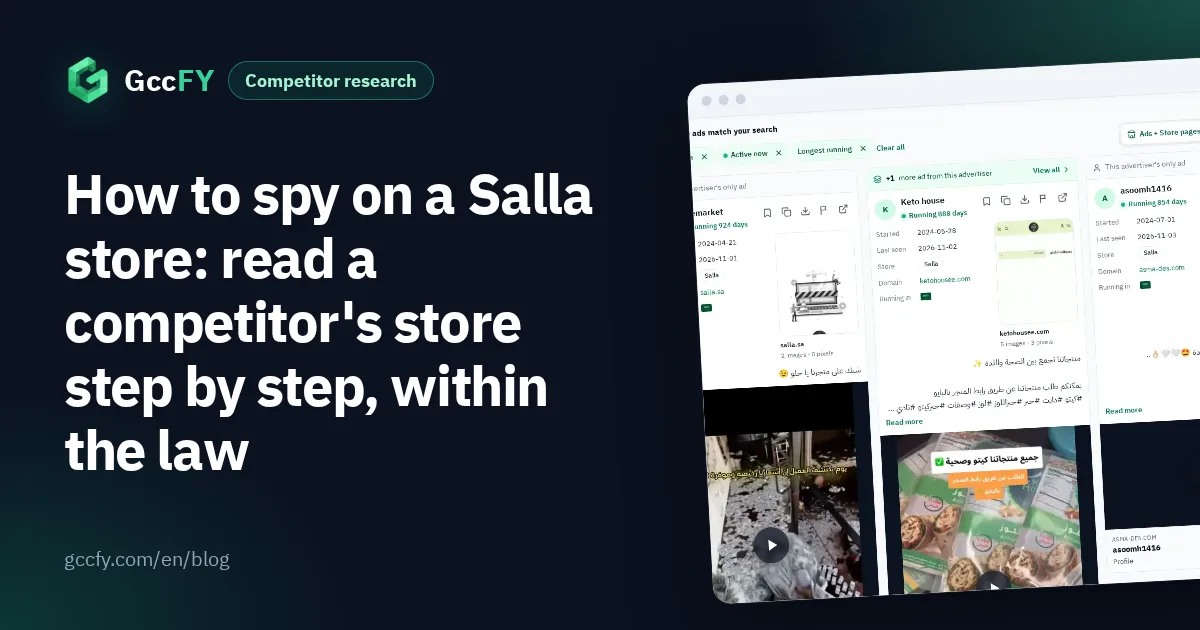
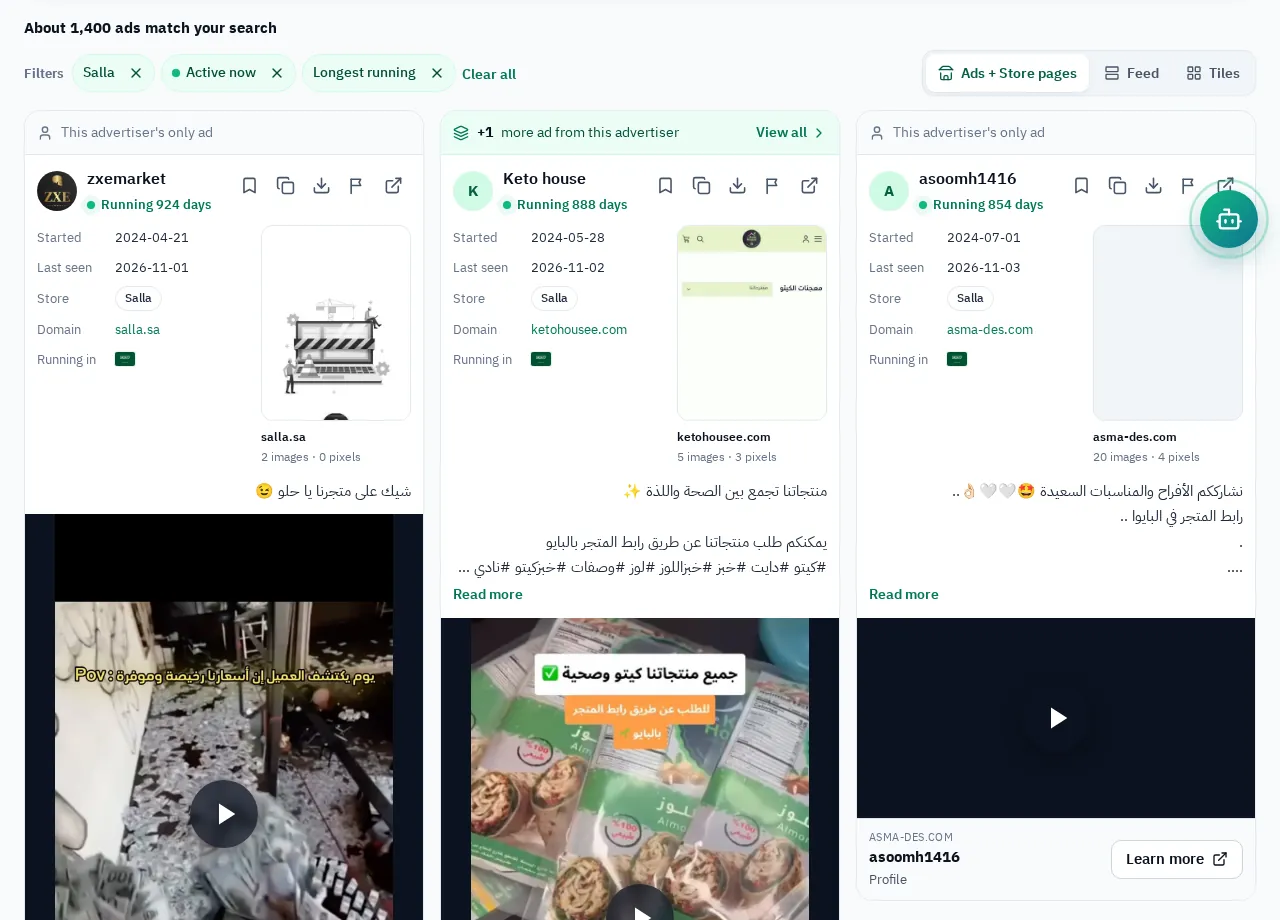
In GccFY we read the link of every ad, identify the store platform behind it, and capture the store page the buyer landed on. So you start from the platform itself, not from a competitor's name you already know:
- The "store type" filter: Salla. Add the country and a word from your category ("عطر" for perfume, "عباية" for abaya), keep active ads, and sort by longest running.
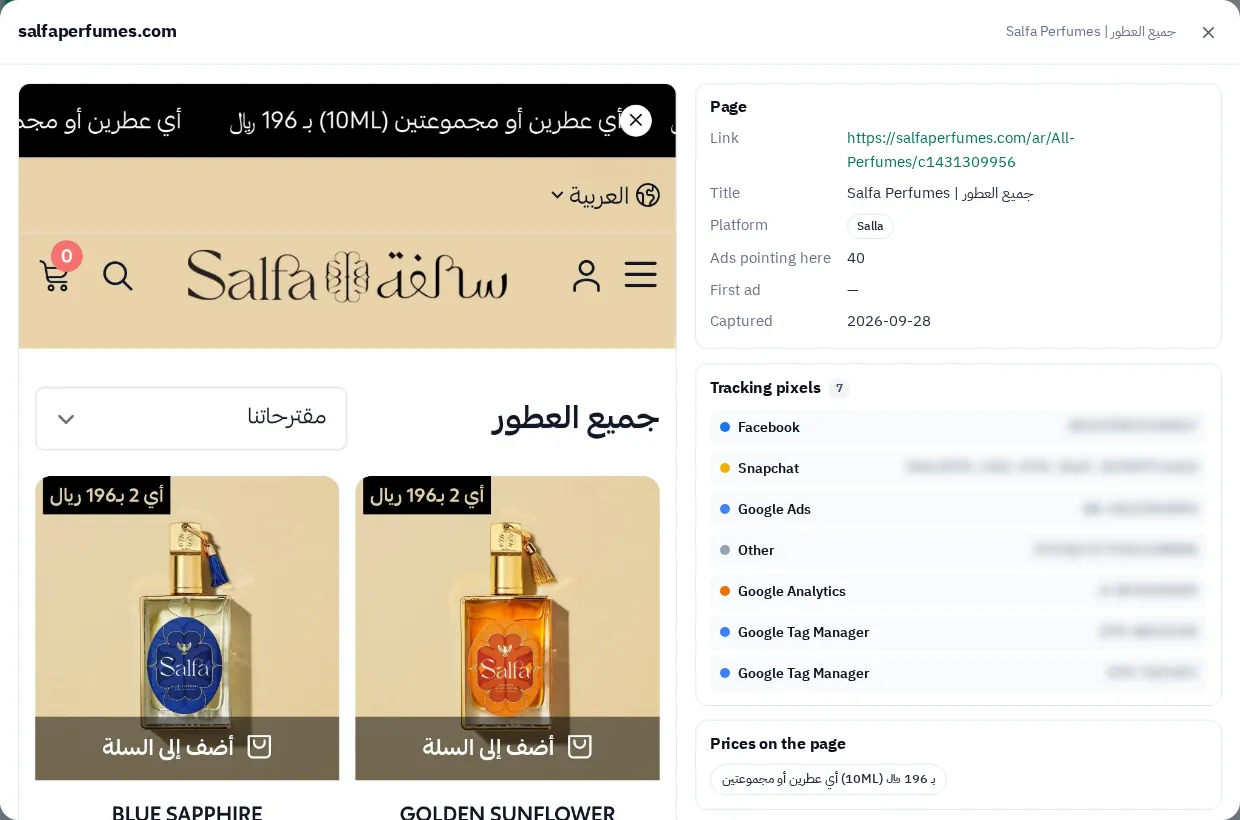
- Open the store page behind the ad. The capture shows the price, the offer and the payment method as the buyer saw them, and the tracking tools we found on the page.
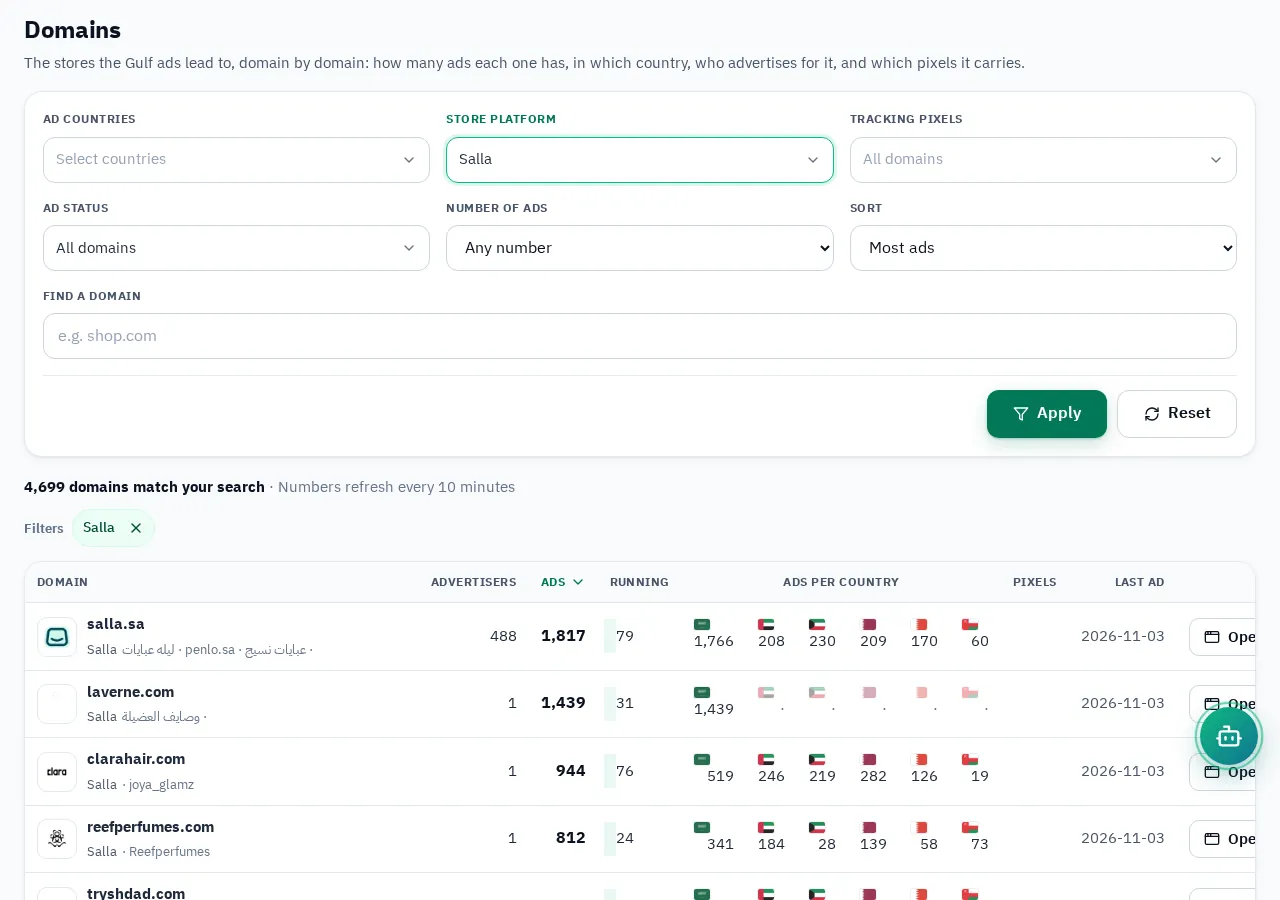
- Open the domain's row. The Domains screen gathers a store's ads whichever page ran them: its ads in each of the six countries, what runs now, and the landing pages we captured. Filter it by the Salla platform or by a given pixel.
- Save what matters in a saved collection, and ask the AI helper about the pattern of your category's ads.
What to read in a competing Salla store's ads
Salla stores' ads have a clear fingerprint that helps you read any competitor: "Order now" on 46% of them and "Shop now" on 42%, cash on delivery mentioned in only 1%, instalments in 6%. The median copy is 24 words, against 45 for Saudi ads overall.
| What to look for | Where to find it | What it means |
|---|---|---|
| An ad running for weeks | The "longest running" sort | A product or offer worth spending on |
| Many new ads | The advertiser's page, newest first | A testing phase or a season coming |
| A new country | The domain row: ads per country | Expansion beyond Saudi Arabia |
| A Snapchat or TikTok pixel | The store page window, or the Pixel Helper extensions | It advertises on those platforms too |
| Price and offer on the day of the ad | The store page capture | How it prices and packages the offer |
Why running time is the strongest signal: Ad running time.
Where the red line is
Competitive research is fair as long as it uses public information that any visitor or any user of the ad library can see. Anything beyond that is not:
- No attempt to enter someone else's store dashboard or data.
- No fake orders to read stock levels or supplier names.
- No copying the design, photos or ad copy word for word: take the idea and the angle, write your own copy and shoot your own product.
The point of all this is a better decision for your store: what to sell, at what price, and how to present it. To find your competitors on Salla in your own category, read Find Salla stores.